USER MANUAL
Submitted By:
Renci
Jamali
Siddeeqe
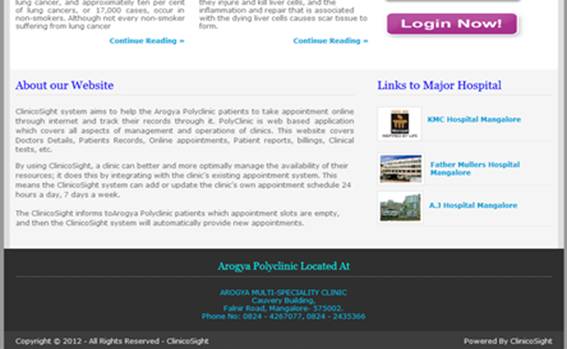

This
is the main page of the website Clinic-O-Sightwhere “home”, “appointment”,
“login” are the main menus. When clicked on home link, the control stays on the
home page itself. When clicked on appointment link, make an appointment page
gets loaded and when clicked on login link patient login page gets loaded.
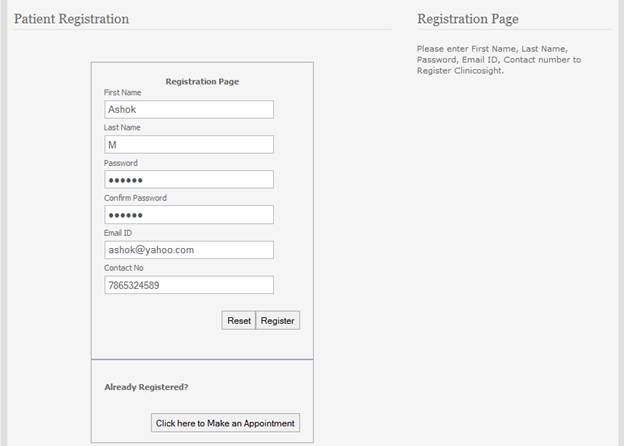
This
is a patient registration form. In this form the patient must enter his/her
first name, last name, password, confirm password, email id and contact number.
By clicking on the “Rest” button, all the fields of the form will be cleared
and by clicking on the “Register” button, patient gets registered. If the
patient is already registered then he/she can directly click on “Click here to
login” button.
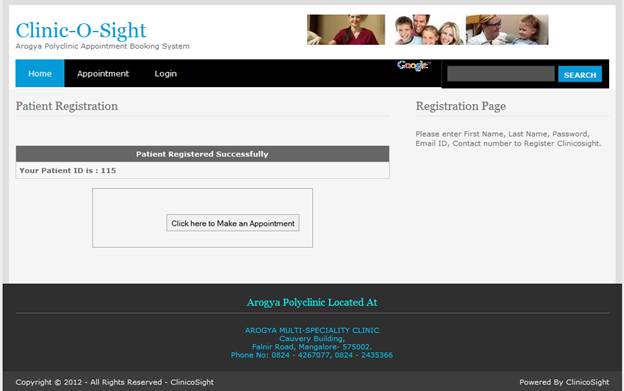
Here
the patient “registration successfully” message and patient id is displayed as
“YOUR PATIENT ID IS: 115”. By clicking on click here to make an appointment button,
login page gets loaded.
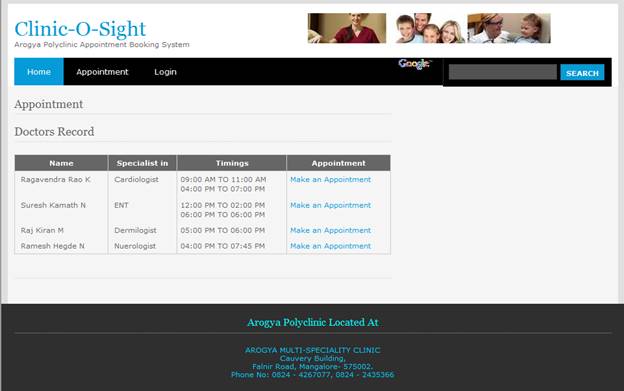
This is the appointment page where doctor records like name,
specialist in and timings are displayed. By clicking on the “Make an
Appointment” link , it redirects the patient to the login form, where the
patient logins with patient ID and password to make an appointment.
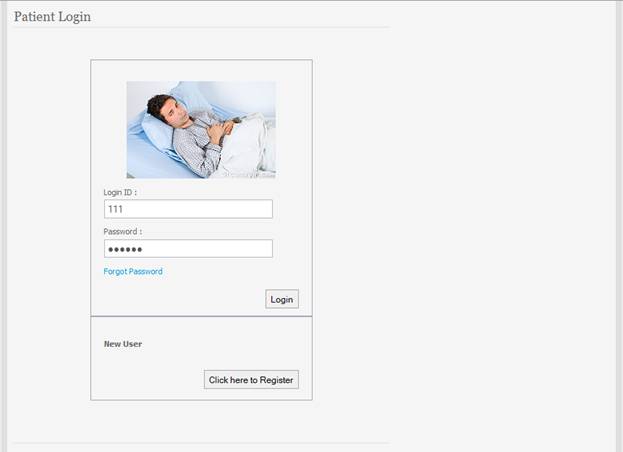
This
is a patient login form where the patient logins, using valid patient ID and
password. If the patient is the new user then the patient clicks on “Click Here
to Register” button. This button redirects the patient to registration form.
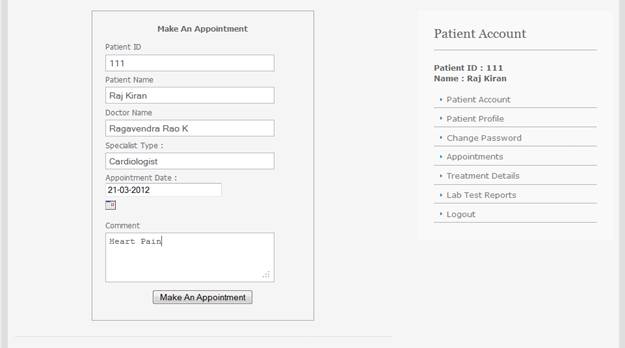
On
login successful the“patient account” page gets loaded where the patient ID and
certain fields are displayed. Here in “make an appointment” form the patient
enters the appointment date i.e., on which day the patient wants to take the
appointment with the relevant doctor. This page is also having side menus like
patient account, patient profile, appointments, treatment details, lab test
reports and logout as shown above.
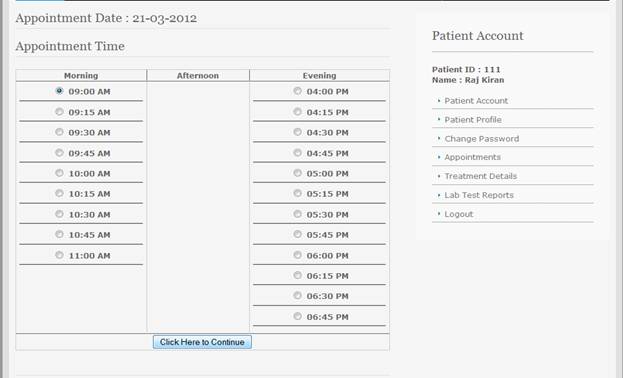 In this page the appointment date
is displayed. Here the patient selects the appointment time.
In this page the appointment date
is displayed. Here the patient selects the appointment time.
 The appointment taken by the
patient record is displayed as shown above, showingin the status that “whether it’spending
or not”.
The appointment taken by the
patient record is displayed as shown above, showingin the status that “whether it’spending
or not”.
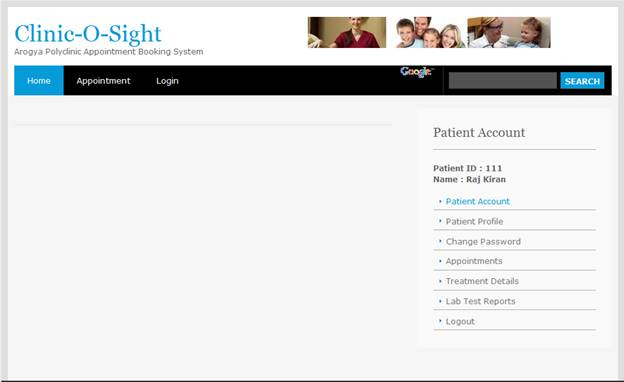
When
patient clicks on patient account link, patient id and name is displayed.

When
patient clicks on the patient profile link, the above form is displayed.
 If the patient wants to change
the password then, he/she can click on change password link from the side menus
and the change password form appears. Login id will be automatically retrieved.
Patient must enter the old password, then the new password and confirm password
for validating purpose. By clicking on change password button, patient password
gets changed.
If the patient wants to change
the password then, he/she can click on change password link from the side menus
and the change password form appears. Login id will be automatically retrieved.
Patient must enter the old password, then the new password and confirm password
for validating purpose. By clicking on change password button, patient password
gets changed.
When
patient clicks on “appointments” link the above form appointments is loaded.
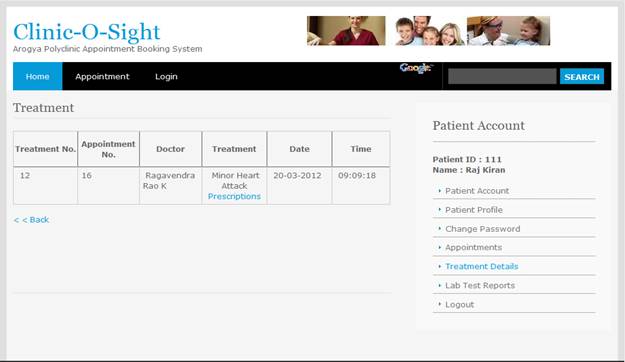
When
patient clicks on “treatment details” link treatment form gets loaded. When
clicked on “prescription”, view prescription page gets loaded.
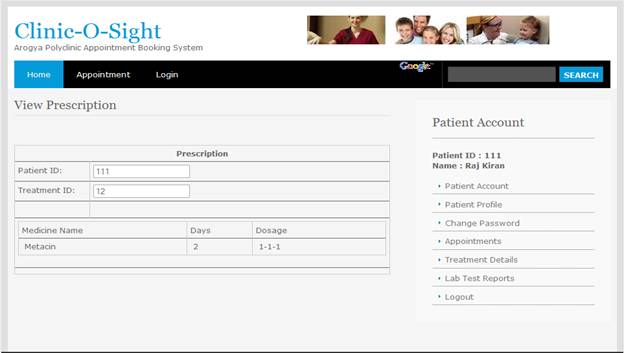
This
is a view prescription form, where patient id and treatment id is automatically
retrieved. Medicine name, days and dosage values are displayed.
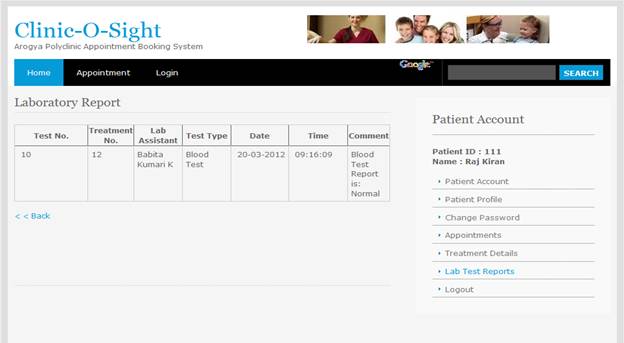
When
clicked on “lab test reports”, laboratory report form gets displayed.
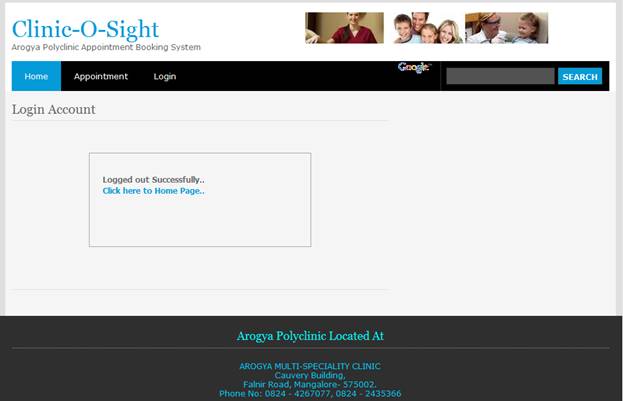
When
clicked on logout, “logged out successfully...” message will be displayed. If
the patient wants to go back to the home page then he/she can click on “click
here to home page” link.